
Setting up a Microsoft Teams Notification Channel
SHIELD Communications subscribers can choose to add Microsoft Teams, as an additional method of delivery when sending a communication from SHIELD. The following outlines how to set up Microsoft Teams channels in SHIELD.
- Login to your SHIELD account: https://shieldbcp.com/.
-
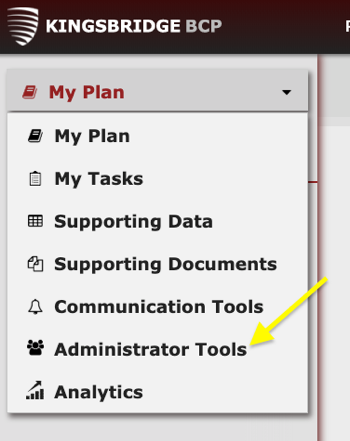
Navigate to the ‘Administrator Tools’ component.
-
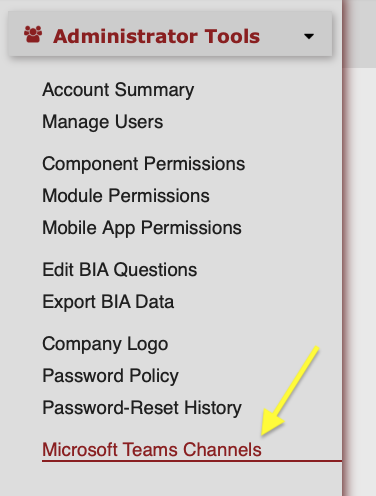
Select Microsoft Teams Channels.
- Ask your Microsoft Teams Administrator to set up a webhook (https://support.microsoft.com/en-us/office/create-incoming-webhooks-with-workflows-for-microsoft-teams-8ae491c7-0394-4861-ba59-055e33f75498).
-
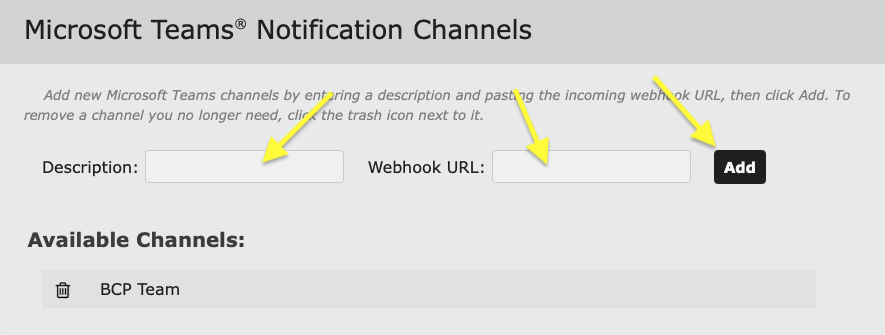
Enter a description for your webhook and enter the URL provided by your Microsoft Teams Administrator. Then click ‘Add’.
- Your webhook will now be available for you to select as a method of delivery when sending a SHIELD Communication.